Getting Started(快速入门)
Prerequisites(前提条件)
Python 3(已使用 Python 3.12 测试)
ecu.test 2026.1 或更高版本
可选:用于使用 VSC 扩展的 Visual Studio Code
可选:用于上传测试报告的 test.guide 项目访问权限
Obtaining ecu.test code(获取 ecu.test code)
ecu.test code 以 “ecutest_code” 的名称发布在 PyPI 上,因此可以直接使用 pip 等常见 Python 包管理器安装。 使用 ecu.test code 不会产生额外的许可证费用。 如果使用 Visual Studio Code,可以通过 VS Code Marketplace(VS Code 扩展市场) 安装该扩展。
Setup(设置)
我们为 ecu.test code 提供了示例文件,可用于快速上手:
确认已安装适用于 ecu.test code 的 Visual Studio Code 扩展
从 Github 下载示例文件并解压
在 Visual Studio Code 中打开
<EXAMPLE_FILES>/examples/- 在 VS Code 中打开终端,并输入以下命令:
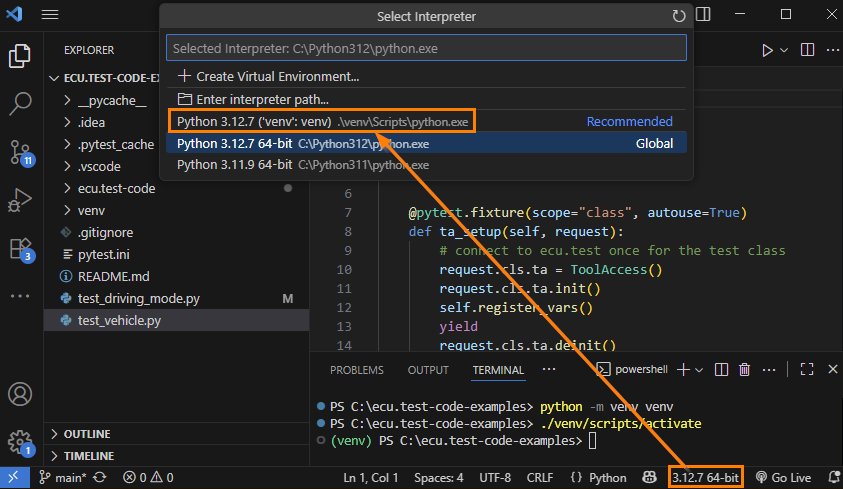
python -m venv venv该命令会在 “venv” 文件夹中创建一个 Python 虚拟环境。
当系统询问是否要“use”该环境时,请选择 “yes”。
./venv/scripts/activate该命令会“进入”虚拟环境,因此后续所有 python 和 pip 命令都会使用 “venv” 作为运行环境。
如果出现 “execution policy” 错误,可能需要允许执行未签名脚本(参见 PowerShell documentation(PowerShell 文档))。
pip install ecutest_code需要能够访问互联网,或访问在 `pip.ini` 中配置的 PyPI 镜像。
该命令会安装 ecu.test code 及其所需依赖。
将该虚拟环境的解释器设置为 VS Code 项目的默认解释器:
- 要创建带自动补全的测试用例或执行测试用例,必须先启动 ecu.test。可按以下方式操作:
- 从 Visual Studio Code 启动 ecu.test
进入 “File → Preferences → Settings → Extensions → ecu.test code”,并设置以下文件路径:
ecu.test 可执行文件或 Runner 的路径(例如
C:\Users\Bob\AppData\Local\ecu.test XXX\ecu.test.exe或C:\Program Files\ecu.test XXX\ecu.test.exe)Workspace 目录路径(
<EXAMPLE_FILES>\examples\ecu.test-code)TBC-Path (
<EXAMPLE_FILES>\examples\ecu.test-code\Configurations\Testlab_HiL_M.tbc)TCF-Path (
<EXAMPLE_FILES>\examples\ecu.test-code\Configurations\SW_Ver_1.tcf)在侧边栏中选择 ecu.test code,然后单击 “Start ecu.test”。这会启动 ecu.test 并加载配置,从而为库调用、测试值和工具作业启用自动补全。
- 在要使用的 Workspace 中手动启动 ecu.test
执行此操作前,必须确保 ecu.test lab(实验室管理) 的 Web 服务器已启动。
通过 Lifecycle API(生命周期 API) 启动 ecu.test
- 可以从随附的示例测试用例开始编写测试用例或实验:
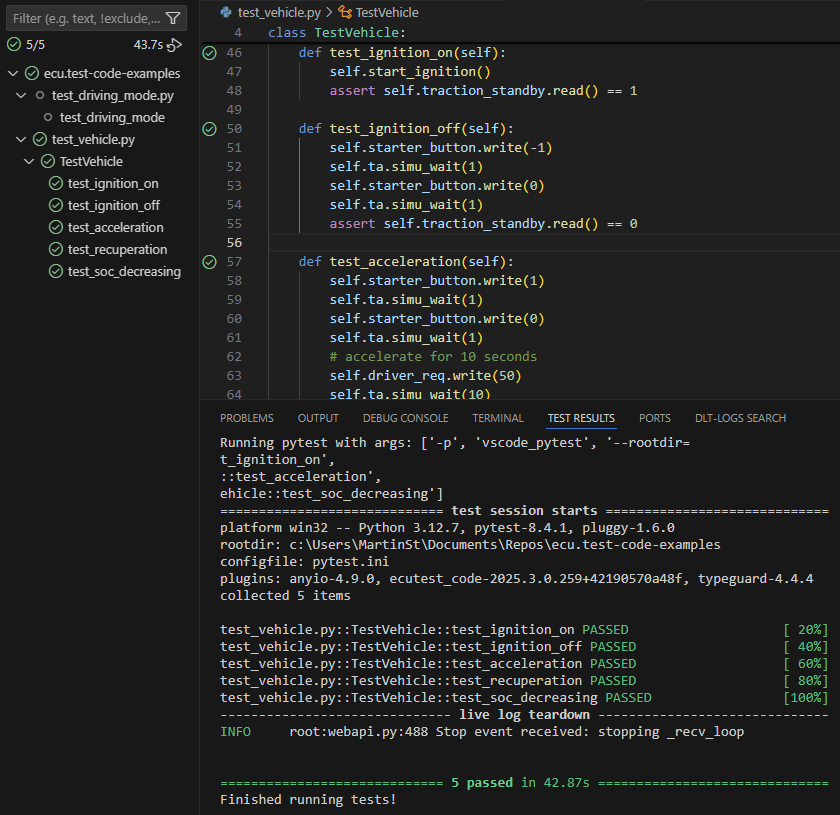
test_driving_mode.py:包含一个基于上下文管理器的简单测试用例。test_vehicle.py:包含一个 pytest 测试类示例实现,用于测试已加载到 ecu.test 中的车辆模型。
使用侧边栏中的 Testing 区域,将 ecu.test code 与 IDE 的单元测试支持结合使用。